Meet your agent, prepare your accounts, and make one small app that works.
Your first finish line is simple: you have an agent helping you, your required apps and accounts are ready, and you have built something that does something. You can start on your phone. You do not need to learn a programming language first.
Start with your agent
Use Copy prompt below, then paste it into the AI agent you already use and send the message. The agent will explain what it can access and give you one next action. Ask it to explain any unfamiliar word as it comes up.
Before that first step, your companion checks which app is talking with you, which computer harness you chose, and whether it can reach the computer and workspace you intend to use. If Codex is your selected harness and that target is available, it may check the CLI version and managed sign-in status without starting Codex or running a model. A phone-only start is fine: keep going here and prepare or choose a computer route later. This check does not run the optional programmatic proof.
A harness is the app or environment that lets an agent work with files and tools. Use or install one as soon as you have computer access; your existing working setup counts. If you are on a phone with a configured remote connection to a harness, you can use that. Otherwise, continue the browser-friendly steps here and save computer setup for later. You do not need several paid AI subscriptions.
I use Codex because I like the interface, the connectivity, and the usage I get from my ChatGPT plan. If you are still choosing, read my take on ChatGPT, Claude, Cursor, and Google. A tool you enjoy working with matters; you can keep the one that already fits you.
Prepare your apps and accounts
Complete this checklist before your first build. Existing apps and accounts count if they are ready to use. Sign in yourself and tell your agent what worked; passwords, verification codes, and recovery information stay outside your conversation and progress notes.
When a service offers Continue with GitHub, your companion should suggest it before a new email/password login. Google sign-in is another option when offered. Keep the sign-in method for an account you already use.
Your primary AI phone app is required.
Supported: ChatGPT, Claude, and Cursor. Sign in with the account you use on your computer, including your subscription if you have one. Use Cursor in the browser (opens in a new tab) if its native app is unavailable. Confirm you can send a message.
Gemini chat is not supported for this pack as of the September 9, 2026 test; Google AI Studio and Antigravity are separate tools. For Antigravity users or those with untested or unsupported harnesses, free Claude Sonnet is a Phase 1 workaround. Sonnet 4.6 at Medium effort has been enough within the free allowance in my testing; use those settings when available. That test does not guarantee future free limits or require an upgrade.
GitHub is required. Create or confirm your GitHub account (opens in a new tab). This is where you will own your project source and, later, a private record of your progress. Complete account verification and secure your account.
GitHub Mobile is required. Install GitHub Mobile (opens in a new tab), sign in with the same GitHub account, and confirm your profile opens.
Cloudflare is required. Create or confirm your Cloudflare account (opens in a new tab). This is our default place to deploy projects. You can finish this step without buying a domain.
Neon is required. Create or confirm your Neon account (opens in a new tab). It is our relational database option for projects that need one. Account setup is enough today; creating a database can wait until your project calls for it.
After the primary AI phone app and GitHub Mobile are ready, your companion may offer one optional checkpoint for your GitHub username, development email, and existing service handles. Share only what you want kept in your private progress; skipping this never blocks a phase. Details already provided carry forward into Computer Setup.
I use Apple Passwords (opens in a new tab) and Google Password Manager (opens in a new tab) for passwords and passkeys. Use the sign-in methods each service actually offers; passkeys and GitHub Mobile approval are valid options when supported. Starter Pack does not require an authenticator app or code-based 2FA enrollment. If a provider independently asks for account verification, approve it directly in that provider's own flow. Never share passwords, verification codes, or recovery information with your companion.
Optional hosting account
Do you want a Vercel account as another deployment option? Cloudflare is the default; Vercel is optional and does not affect Phase 1 completion.
Make one app that does something
Start in your companion chat. Your companion must ask "What do you want to build?" and wait for your answer before suggesting a project, creating a demo, or writing a build prompt. A rough idea is enough. If you already shared an idea or have a useful build in your saved progress, your companion should pick up from there.
If you are unsure, say so. Your companion can ask about a hobby, recurring chore, or problem you care about, then offer a few ideas based on your answer. You choose what to make before it prepares a build. The examples in this guide are illustrations, not assigned projects.
Once you have chosen an idea, keep the first version small with one observable result. First build? Your companion will offer the optional Two-Build Challenge before refining your idea. Otherwise, follow this path:
Idea → chat refinement → reviewed prompt → instant builder → test → iterate.
Tell your companion what you want to make. Together, clarify who it is for, the main action, the inputs or content, and what the result should be. Include important exclusions and any visual direction that matters to you.
Have it turn those decisions into a concise build prompt, with assumptions you can check and one action that would prove it worked.
Review and correct the prompt. Then paste the approved version into your chosen builder in the browser.
Chat is where you work out what you mean; the builder is where you try making it. A useful prompt resolves decisions and shares context. Adding words alone does not make it better.
Optional: the Two-Build Challenge
Want to feel the difference for yourself? Before refining your idea, ask your companion to guide this small experiment:
Build A: paste your raw one-line idea into the builder unchanged. Try the result once; leave improvements for the comparison.
Back to chat: explain what you actually imagined. Refine it together using the questions above, then review and correct the build prompt.
Build B: use that reviewed prompt in a fresh attempt with the same builder. Keep the same idea and give each build the same short time window.
Compare: try the same main action in both. What works, what is missing, which assumptions changed, and which interface comes closer to what you meant? Choose the version you want to keep, then continue testing and iterating below.
This is an experiment, not a test you can fail. Build B does not have to win. You do not need two saved projects, repositories, or deployments. Already have a reviewed prompt or a useful build, or returning to saved progress? Keep that work and skip the comparison. Declining it changes nothing about Phase 1 completion.
Here is how that refinement looked in one of my projects:
A Phase 1 example
Domain Expansion
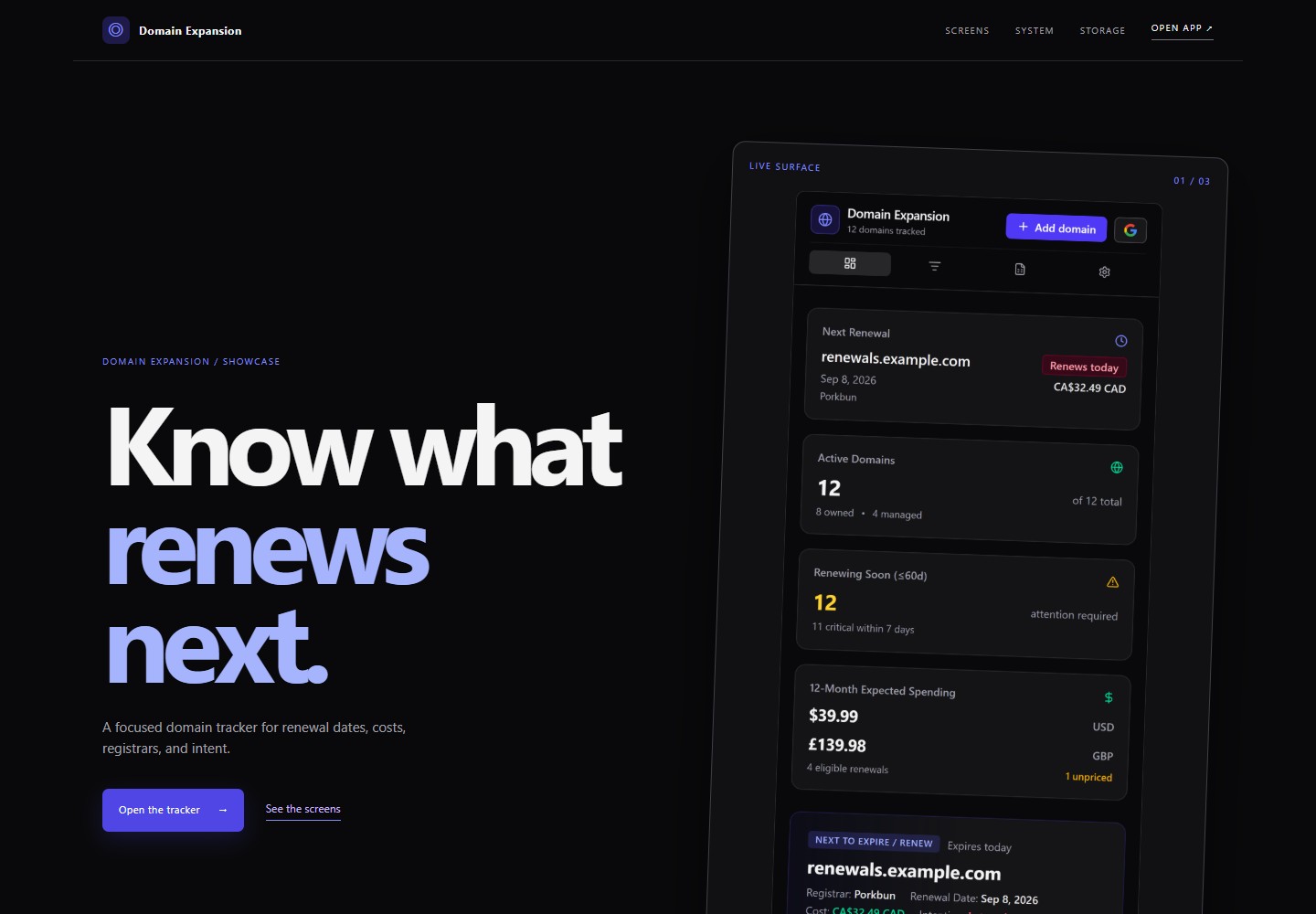
This is the type of thing you can make in this phase: a small app that brings domains, renewal dates, and costs into one place. I built it in Google AI Studio, then moved it into my normal development tools. The lessons in this phase come from making and trying it.
The Domain Expansion showcase, captured September 8, 2026.
From my projects / Domain Expansion
Start with something that bothers you
I had website domains spread across several registrars. Every time I wanted to know what renewed next or what it would cost, I had to check different websites and emails. Domain Expansion started with that annoyance: put my domains, renewal dates, and costs in one place.
I already knew the idea. The experiment was seeing how far a clear request could take it in Google AI Studio. I first asked an AI assistant to turn my rough description into a build prompt. Then I reviewed what it had added before giving the prompt to the builder. That is the same chat, review, then build path you can use here. Resolving the assumptions mattered more than the prompt's length.
Try it / Your idea
Describe the problem in three sentences
Write three sentences: what you keep doing the hard way, what you wish you could do instead, and one action that would prove the app helps. A hobby, a recurring chore, or a collection you care about gives you something concrete to judge.
Help me turn this everyday problem into a prompt for my instant builder. Keep the first version small. Separate the main action from optional ideas, show me your assumptions, and let me review the prompt before building.
From my projects / Domain Expansion
The assumption I corrected before building
The first plan put user accounts and domain records in a central database. I did not want to maintain everybody's records. I asked for each person's data to stay with their own Google account, with extra permissions requested only when they used an optional feature. That changed the proposed architecture.
You can express a boundary like "I do not want to store other people's information" without knowing which database to choose. Ask the agent where the information would live and who could access it. My revised prompt requested that privacy model; the request itself was not proof that every storage and permission guarantee had been implemented correctly. Those claims need checks after building.
This was a decision for Domain Expansion. Your first app does not need Google integrations, sign-in, or a database just because mine requested them.
Try the main action
Try the main action yourself. A button that changes the count or chooses a meal is enough for this milestone. If it does not work, tell the builder what you expected and what happened. Make one focused correction at a time. If the interface is confusing, ask your companion to explain the current step or help you choose another builder.
Try the main action on the phone or computer you will actually use. Describe what you did, what you expected, and what happened; ask for one focused correction if it fails.
Tell your agent when the app performs that behavior. A screenshot of a finished-looking page is different from a working action; you decide whether the action worked.
From my projects / Domain Expansion
Try it, then decide what deserves to stay
AI Studio gave me a tracker I could use immediately. I had also asked it to discover domain information from Gmail. That feature fell flat when I tried it. I removed it because the useful part of the app did not depend on searching my email.
The original prompt still contained Gmail discovery. The app I kept did not. That is a useful distinction: the prompt describes what you asked for; using the result tells you what actually works and what is worth continuing.
Try it / Your first build
Test your result with a real example
Use your main action with a real example. Describe what you entered, what you expected, and what happened. If something fails, decide with your agent whether it blocks the app's main job or is an optional convenience. Have the agent explain the tradeoff before you approve a cut. Keep essential privacy, safety, and data requirements even when they are difficult.
Help me try this app's main job. Separate failures that block the core purpose from optional features. Propose one focused correction or scope change, and wait for my decision before removing anything.
Choose what happens to this first build
Each choice is independent. Saying no is fine, and your companion records the choice.
Do you want to save this app?
Do you want to connect it to GitHub?
Do you want to make it public?
Do you want to work on it later?
Saving, connecting, publishing, and deploying are optional in Phase 1. Your agent should explain what a choice will expose or preserve before taking that action. Check the builder's current plan and sharing controls before accepting a purchase or public release.
Extra credit: put your app online
Do you feel confident enough in this idea to share a live version? Deployment is extra credit for learners who are confident in what they made, comfortable with the app being public, and already have a usable way to continue building. Once your required apps and accounts are ready, a first working app is enough to finish Phase 1.
You can use a computer, an already working remote harness, connected deployment tools, or upload static website files directly from your phone. If the route you want is not ready, you can save this extra credit for later; Computer Setup can wait until Phase 2.
Can I do the extra credit entirely from my phone?
Yes. For a small HTML/CSS/JavaScript site, follow Deploy a static site to Cloudflare from your iPhone. It walks through saving your agent's files, uploading the folder in Safari, and checking the public site, with screenshots from my test. Use any agent that can provide the files; this route does not need a Cloudflare connector or a computer.
Connected tools offer other routes. Your companion should check what is available in your conversation before choosing one:
ChatGPT: connect Vercel and have your agent deploy the app after you approve the destination. To keep the source in a new GitHub repository, create an empty repository in GitHub Mobile, then return to ChatGPT with GitHub connected to save and commit the files. I tested that repository handoff separately from the deployment. Your computer does not need to be running.
These Claude and Cursor connector routes are based on provider documentation checked September 8, 2026; I have not repeated those connector deployment tests. Vercel is optional, and Cloudflare remains the pack's default. If you choose to save your source, confirm where it was saved: a live website alone is not a GitHub backup.
If you choose Vercel: after I saved my AI Studio project to GitHub, Vercel emailed me an offer to import it. That shortcut worked in my September 9 session. If you receive one, confirm it targets the right repository; otherwise use Vercel's normal GitHub import (opens in a new tab). You do not need to wait for an email.
From a completed session / Resample Studio Lite
Know which version you are testing
In my September 9 Phase 1 session, I shipped Resample Studio Lite (opens in a new tab), a varispeed audio tool. Testing playback on my iPhone caught a bug that needed a focused correction. I also added a small version footer so I could tell whether the latest release had arrived.
Try this for your release: ask your agent to add a visible version label and update it with each release. Open the public URL, check that the expected label is there, then try the main action on your device. The label identifies the release; the interaction tells you whether it works.
Review and publish
Do you want to deploy this app now? If yes, tell your agent which working route you have. Review what will become public and approve the destination before it publishes. Publishing the app and making its source repository public are separate decisions; your private progress record stays private. Open the resulting live URL in a private browser tab while signed out, try the main action, and save the link with your progress. If it asks for a hosting login, have your agent help you check sharing settings. A preview URL or a successful build alone does not establish a working public release.
If access, setup, or deployment gets in the way, record the resume point and leave this extra credit for later. It never blocks Phase 1 completion or replaces the Phase 2 project.
Extra credit / Domain Expansion
Keep the useful work when you change tools
I decided this experiment was worth keeping. When the AI Studio publishing route asked me to enable Google Cloud billing, I declined that path, connected the project to GitHub, and used my normal harness to deploy it to Vercel. That was my route during this experiment; Cloudflare remains the default in this pack.
Extra credit / Domain Expansion
What happened after I put it online
The generated app still had mobile text overflow and awkward button positions. I had the harness use Puppeteer, a tool for operating a browser, to find and repair those problems. My roughly 45-minute Luna Max session was the testing and repair pass, not the total time to build the app. I was pleased with the layouts in the scenarios we checked; that does not establish that every integration worked.
The testing produced screenshots that became a showcase page. I had not planned that page at the beginning. Useful material came out of checking the work itself.
Try it / Optional continuation
Carry your work into the next tool
If you want to continue, ask your agent to preserve the source, record what works and what still fails, and explain the next hosting step before publishing. Changing tools should carry the project and its remaining work forward. You can also stop with your working first app. This continuation adds no Phase 1 requirement and does not replace your meaningful harness build in Phase 2.
Save your place
Your agent checks the required steps, saves your place, and tells you when Phase 1 is complete. It does this when your last required action works, when you finish a session, and when you return. It uses the same requirements as your progress record and keeps optional choices separate; you do not need to ask whether you are finished or fill out a template yourself.
If your agent cannot save files for you, it returns the entire updated progress file as a download or copyable JSON. Save it somewhere you can find again, or copy the complete text into a note. Attach the file or paste the saved text when you return. The agent reuses what you already answered and only asks about a genuinely missing result.
You can finish entirely on your phone. A desktop, private GitHub progress repository, Workbench, development email, and deployment are not required. Once the required work is complete, your agent offers optional follow-through, a stopping point, or Harness your power when you have a computer. It does not start the next phase for you or reset a recorded completion when you return.
Files for your agent
Your agent follows these files from the prompt. If it asks for an address, copy one here. On iPhone, you can also touch and hold the address to select and copy it.
Phase guide for your agent
On iPhone, touch and hold the text, then choose Copy. Use Select All if needed.
Paste into your agent.
Phase data
On iPhone, touch and hold the text, then choose Copy. Use Select All if needed.
Paste into your agent.
Starter Pack instructions
On iPhone, touch and hold the text, then choose Copy. Use Select All if needed.